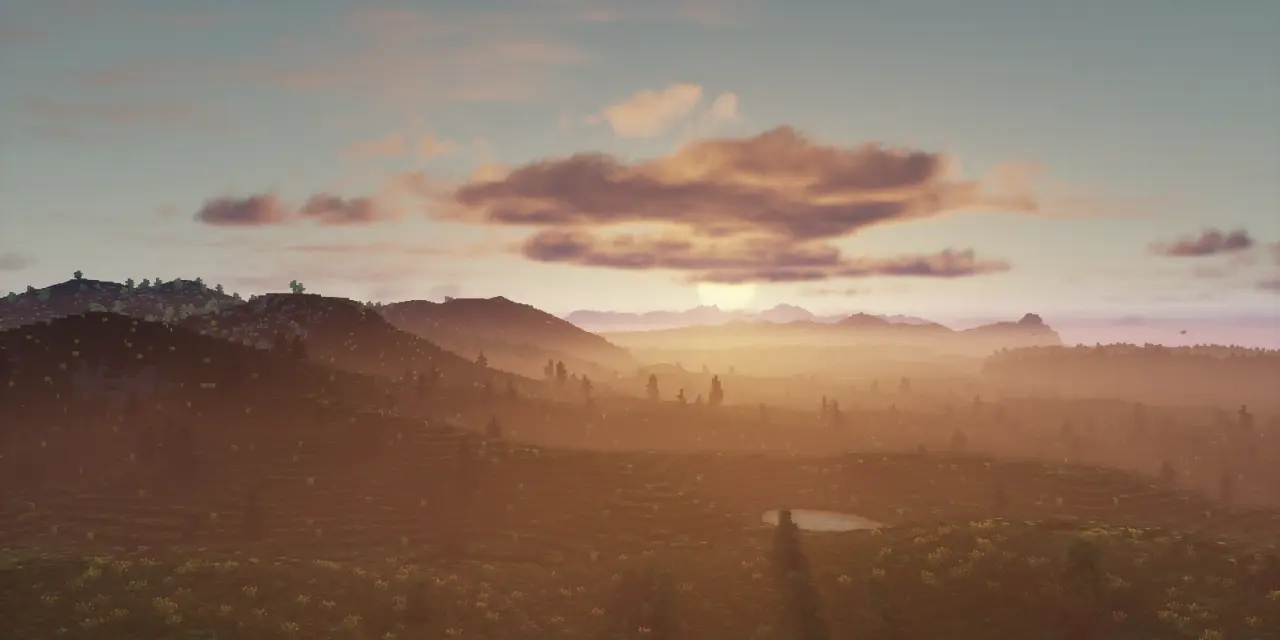
One of the challenges of building our vision of Middle-Earth is the attention to detail, be it cozy little homesteads or imposing structures. What often gets overlooked is the natural terrain of Arda, which is of equal importance to us. We strive to achieve the best results within the restraints of the tools we have available to us, thanks to our amazing development team and other volunteers. One of the tools we have in our arsenal, is the plug-in called ‘TerraSniper’, which only recently this August got supplemented with a new mode that works in unison with the revolutionary Conquest Refabricated we use on our server. In this quick guide you may learn some basics and tricks you can try for yourself in one of our many available plots on our server!
Where to start with TerraSniper
First off, you should be in our plot server, which can easily be accessed by typing in chat the command /servers or, alternatively, /server plots.
After you find yourself there, go ahead and claim a plot of your own, by typing /plot auto
You will then be teleported to a randomly assigned plot of 100×100 blocks dimension, where you are free to build and use all our tools (WorldEdit/Axiom/TerraSniper/Create) to your heart’s content. There is a maximum of 4 plots you can claim, and if you’d like, you can merge them and form a super-plot, by typing the command /plot merge
TerraSniper basics
Once you’re all set and ready to go, your first step in using this tool will be to enable it, with the command /ts safety. After that, get yourself the tools by typing /ts tools default
You should have now in your inventory a Gunpowder, and an Arrow. These are the items which you will use as your tools for TerraSniper.
Use your Scroll Wheel or the numbers on your keyboard, and have either item be in your character’s main hand. After that, you are ready to set up your desired settings which you will use for your creative project!
Settings to choose from
TerraSniper has many different modes and brushes you can choose from, but for simplicity’s sake here are some of the more commonly used ones in our builder team:
First off, you’ll want to select the size (radius) of your brush. For that use the command /ts b then in front of it, choose a number, for example: /ts b 5
Another setting you may want to set up yourself is what mode you want your tool to be.
(this mode will allow you to add spheres of your desired block, which can be chosen by the command /ts v, followed by the block ID/Name, or alternatively by typing offhand which will use the block you currently have on your character’s off-hand)
(this mode will allow you to fill in existing holes in existing terrain – if the Arrow is on your main hand – or expand upon them, by deepening/widening – with the Gunpowder in your main hand)
(this mode will allow you to lift up existing terrain – with the Arrow in your main hand – or sink down existing terrain – with the Gunpowder in your main hand)
(this mode will allow you to give existing terrain a ‘smoother’ look, by blending height differences together so the slopes/bends/curves have a more natural flow)
(this Work in-progress mode will allow you to modify existing terrain, not too dissimilar to the smooth setting. If used along with the setting /ts smallblock, some smoother horizontal terrain transitions may be achieved)
Some additional settings you may want to configure into your tool after you have chosen your mode are as follows:
(this will select the block type you want your tool to use when creating terrain, such as with /ts b ball)
(this mode works in conjunction with the Conquest Reforged mod, which will allow you to “shrink down” the full blocks, or in other words, use smaller versions of the regular sized blocks)
(this setting you may be familiar with from other mods such as WorldEdit, will allow you to choose what type of block will be affected by your tool. For example: /gmask stone will make it so only full-sized stone blocks will be impacted by your actions)
Remember, this setting is global, so any other tool you use (WorldEdit/PaintBrush) will be impacted. To disable the global mask, type /gmask